 How-to
5 Steps to Request a Custom Home Search on the MLS Portal
Last Updated: November 10, 2026
Quick Summary
To request a custom home search on the MLS portal, send your agent a written list of your criteria, including budget, property type, bedrooms, locations, and must-have features. The agent builds a saved search and sends you a portal invitation, and you can then turn on listing alerts. Confirm the filters with your agent before reviewing the first results.
- Write down your budget, property type, locations, and must-have features before you ask.
- Your agent builds the saved search and usually sends a portal invitation by email.
- Ask your agent to read back the search terms to catch wrong filters early.
- Change one filter at a time when refining results that are too broad or too narrow.
- Check spam and promotions folders if the portal invitation or alerts do not arrive.
Table of Contents
- What a Custom Home Search Does and Why It Saves Time
- Prepare Your Home Search Criteria Checklist Before You Ask
- How to Request a Real Estate Agent Home Search
- Setting Up MLS Portal Search Filters
- Turning On MLS Listing Alerts and Managing Notifications
- Refining a Search That Returns Too Many or Too Few Homes
- Start Your Custom Home Search with FloridaSells
- Frequently Asked Questions
What a Custom Home Search Does and Why It Saves Time
A custom home search is a saved set of criteria that an MLS portal runs for you automatically. Instead of checking listings every day, you tell your agent what you want, and new matches come to you. For busy buyers in Orange and Osceola Counties, that saves hours each week.
Most people start by scrolling public sites. That works for browsing, but a custom search built on MLS data can surface new listings as they are entered into the system.
Here is what a custom home search typically does:
- Runs your criteria against new and updated listings
- Sends alerts when a home matches
- Tracks price changes and status updates
- Lets you organize and save favorite homes in one place
Watch out: a search that is too broad floods your inbox with homes you will never tour. Start tight and loosen filters only after you see the results.
Prepare Your Home Search Criteria Checklist Before You Ask
Before you request a search, write down your must-haves. A clear list gets better results on the first try, and it keeps your agent from guessing.
Use this checklist:
- Budget: Your target price and a firm maximum. Confirm your numbers with a lender before you set them.
- Property type: Single-family, townhome, condo, or new construction
- Bedrooms and bathrooms: Minimum counts, plus any you would like but could live without
- Square footage and lot size: Minimum living space and outdoor space
- Locations: Specific neighborhoods, cities, or a radius around work or school
- Commute: Maximum drive time and the route you take most often
- Must-have features: Pool, garage, single-story layout, or a home office
- Deal-breakers: Things you will not accept, such as busy roads or flood zones
- HOA tolerance: Whether you accept a homeowners association and its fees
Rank your list from most to least important. When you have to trade something off, the ranking tells your agent where you can flex.
How to Request a Real Estate Agent Home Search
Once your checklist is ready, the request itself is a short conversation. What separates a search that works from one you abandon is knowing what happens on the agent's side after you ask. Here is the full walkthrough, from your first message to your first alert.
Step 1: Send a written request. Call, text, or email your agent and say you want a custom MLS search. Put your criteria in writing, even if you also talk by phone. You can submit your ideal home criteria through the Dream Home Finder form. A written list becomes the reference point when results look off.
Step 2: Share the inputs the agent needs. Your agent will translate your checklist into MLS fields. The practical inputs are:
- Price minimum and maximum
- Property type (single-family, townhome, condo, new construction)
- Bedroom and bathroom minimums
- Minimum square footage and lot size
- Cities, zip codes, subdivisions, or a map boundary
- Statuses to include (active, coming soon, pending)
- Must-have features and deal-breakers
- HOA tolerance
Step 3: Let the agent build the search. Your agent logs into the MLS, creates a saved search with those fields, and links it to your contact record. Most MLS systems then generate a portal invitation, usually by email. For guidance on sorting the results you receive, see how to organize home search results. The invitation is what gives you your own login rather than a shared agent view.
Step 4: Accept the portal invitation and set a password. Open the invitation on the device you will actually use.
Step 5: Confirm the filters out loud. Ask your agent to read back the search terms: price range, areas, property type, bedroom count, and statuses. This is the single most useful check in the process. A search built on a zip code when you meant a school attendance zone, or a condo filter when you wanted townhomes, produces weeks of wrong alerts.
Step 6: Review the first batch and reply with feedback. Look at the first results and tell your agent what is right and wrong. "Everything is too far north" or "these all need a garage" is actionable. "I'll know it when I see it" is not.
Watch out: if you never receive the portal invitation, check the spam or promotions folder before assuming the search was not built. Invitations from MLS portal systems are frequently filtered.
The request itself breaks down into six steps, each with a clear action and what to watch for.
| Step | What to do | Key detail |
|---|---|---|
| 1. Send a written request | Ask your agent for a custom MLS search in writing | Written criteria become your reference point |
| 2. Share inputs | Give price, property type, bedrooms, size, locations, statuses | Agent translates these into MLS fields |
| 3. Build the search | Agent creates a saved search and links it to your contact | Usually triggers a portal invitation by email |
| 4. Accept invitation | Open the invitation and set a password | Gives you your own portal login |
| 5. Confirm filters | Ask agent to read back the search terms | Single most useful check in the process |
| 6. Review and give feedback | Reply with what is right and wrong in first results | Specific feedback makes the search better |
Setting Up MLS Portal Search Filters
Filters decide which listings reach you. The MLS portal lets your agent narrow results by price, location, property type, and features. Some portals also offer a map search, so you can draw a boundary around the areas you want.
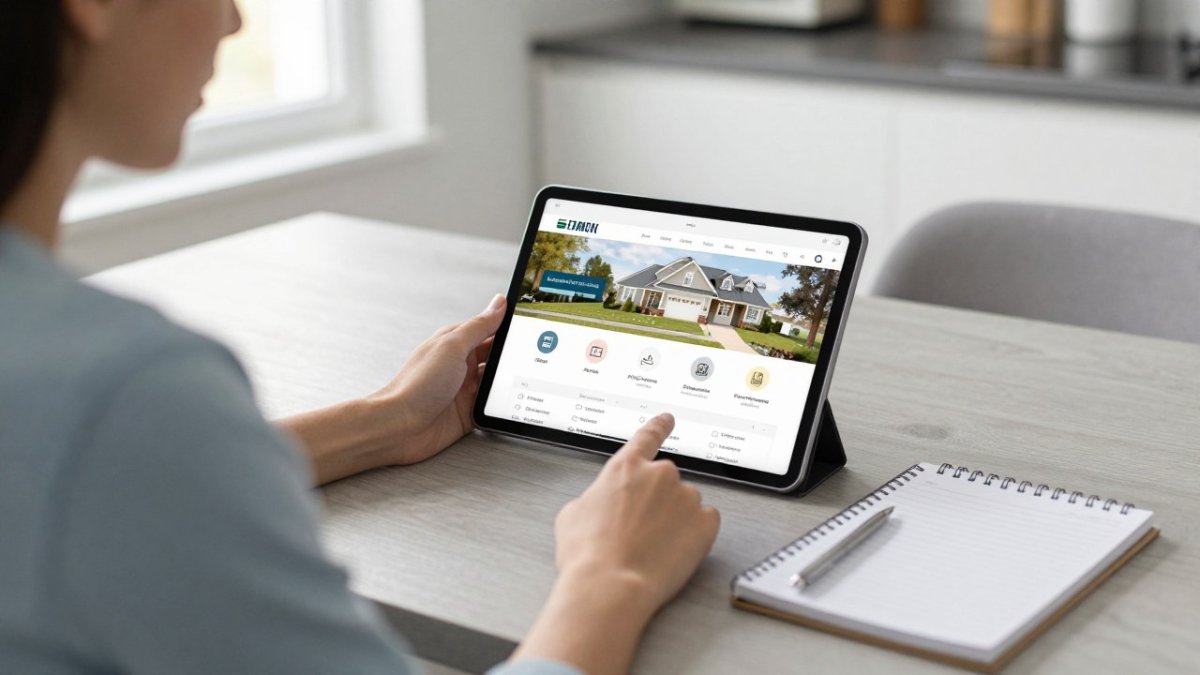
Common filters include:
- Price range: Minimum and maximum
- Location: Cities, zip codes, or map boundaries
- Property type: Single-family, condo, townhome, or land
- Size: Bedrooms, bathrooms, and square footage
- Status: Active, pending, or coming soon
- Features: Pool, garage, waterfront, or updated kitchen
Start with a few filters. Add more after you see how many listings come back. Too many filters at once can hide good homes. If you want to see how a filter setup looks in practice, the guide on organizing home search results covers how to sort what you get back.
Turning On MLS Listing Alerts and Managing Notifications
Listing alerts push new matches to you by email, text, or app notification. Turn them on in the portal or ask your agent to enable them for your saved search. You can also sign up for property update emails from FloridaSells.
Set your alerts this way:
- Frequency: Instant alerts for active buyers, daily digests for casual browsing
- Channel: Email for details, text for speed
- Price changes: Turn these on to catch reductions early
- Status changes: Get notified when homes go pending or sell
Watch your inbox settings, too. If alerts land in spam, add the sender to your safe list.
Refining a Search That Returns Too Many or Too Few Homes
Your first results are a test, not a verdict. The goal is a search that returns a manageable number of homes you would actually tour, usually somewhere between a handful and a few dozen active listings depending on your price range and area. Here is how to diagnose and fix a search that misses that target.
If you get too many results:
- Tighten the price range in increments of $25,000 to $50,000, starting at the top
- Remove one location at a time rather than all at once
- Add a minimum bedroom count or square footage
- Require a feature you truly need, such as a garage or first-floor primary suite
- Switch statuses to active only if coming-soon and pending listings are adding noise
If you get too few results, or none:
- Check the obvious first: a price maximum typed one digit short, or a minimum bedroom count one too high, will return zero
- Widen the map boundary or add one adjacent zip code
- Allow one additional property type, such as townhomes alongside single-family
- Move a must-have to a nice-to-have and see what appears
- Confirm the status filter is not set to a single narrow status
Change one filter at a time. If you change three things and the results improve, you will not know which change helped. One change per round keeps the feedback loop clean.
A common pattern is a search that returns plenty of homes but none you like. That is usually a criteria problem, not a filter problem. If every result is a two-story house on a busy road, the issue is that your must-haves were never entered as filters. Send your agent a note naming the pattern, and let them add the missing field.
When alerts stop or results look stale:
- Confirm the saved search is still active in the portal
- Check that the notification channel is still turned on and the email address is current
- Look in spam, promotions, and any portal app notification settings
- Ask your agent whether the search was paused, duplicated, or replaced during an update
Manage notification frequency deliberately. Instant alerts suit an active buyer in a fast-moving price range. Daily or weekly digests suit a buyer still learning the market. You can usually change frequency without rebuilding the search, and you can pause alerts during a vacation without losing the saved criteria.
Review results every few days and adjust as you learn what you actually want. A search tuned over two or three rounds will outperform one built perfectly on day one.
Start Your Custom Home Search with FloridaSells
Requesting a custom home search is simple once you know what to ask for. Build your checklist, share it with your agent, set your filters, and turn on alerts. Then refine based on the results you see.
At FloridaSells, we set up customized MLS searches for buyers across Orange and Osceola Counties, including Orlando, Windermere, and Lake Nona.
Search By City
Frequently Asked Questions
How do I request a custom MLS home search?
Contact a licensed agent who has access to the MLS and tell them what you are looking for. Share your target areas, price range, property type, bedroom and bathroom counts, and must-have features. The agent builds the custom search in the MLS and sets up automatic delivery so you receive matching listings as they come on the market. FloridaSells offers a customized MLS search tool for Orange and Osceola County buyers, and you can request your search through the agent team to get started.
Can I customize the filters in my MLS search portal?
Yes. Most portals let you narrow results by price, location, property type, square footage, lot size, year built, and features such as a pool or a garage. You can also set minimum and maximum values and exclude property types you do not want. If the first results are too broad, add one filter at a time so you can see how each change affects the number of matches.
How often will I receive new home listing alerts?
Alerts are typically sent as soon as a new listing matching your criteria is entered into the MLS, and many portals also send updates when a price changes or a listing status changes. The exact timing depends on how your agent configured the search and your notification settings, so confirm the frequency when the search is set up.
Is an MLS portal more accurate than real estate listing websites?
MLS data is the source that listing agents enter directly, so it is generally the most current view of what is for sale. Public listing websites pull from the MLS but may update on a delay or omit details. Using both is a practical approach: the MLS portal for accuracy and timing, and public sites for browsing and neighborhood context.